Business Expenses Template Excel: Track Costs Like a Pro
Running a business without tracking expenses is like driving blindfolded. You might stay on the road for a while, but you'll eventually crash. Skip proper expense tracking and you'll face tax nightmares, cash flow surprises, and missed deductions worth thousands.
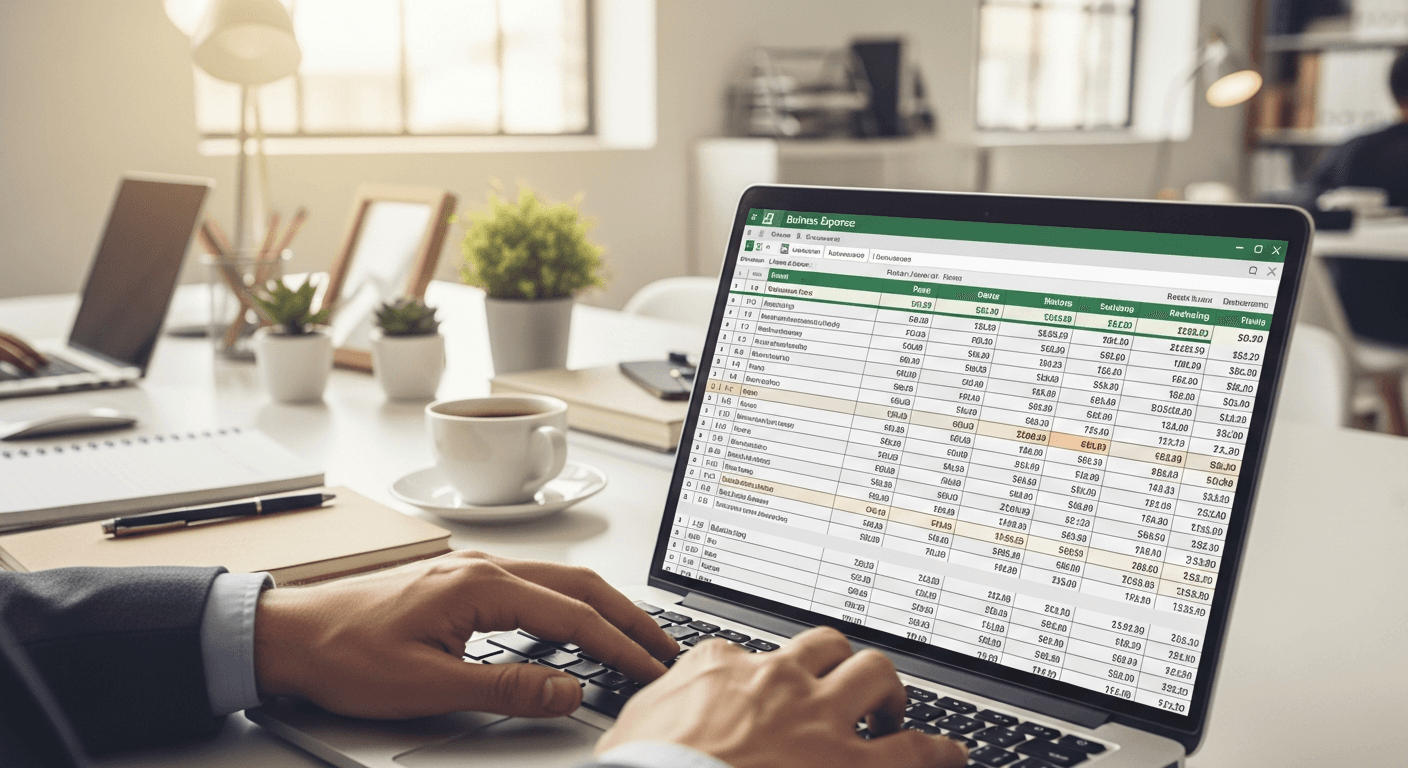
Excel templates offer the perfect middle ground between pen-and-paper chaos and expensive software subscriptions. They're free, flexible, and work exactly how your business works.
Why Excel Still Beats Fancy Apps for Most Businesses
You don't need a $12 per user monthly subscription to track business expenses effectively. While 79% of enterprises have adopted digital expense tracking solutions, small businesses often get better results from a well-structured Excel template.
Excel gives you complete control. Want to track mileage differently than everyone else? Done. Need custom categories for your specific industry? Easy. Most expense apps force you into their workflow, but your business doesn't fit their box.
The real advantage: no monthly fees eating into your profits. When you're choosing between a $200 software subscription and free Excel template, the math isn't complicated.
Essential Categories Every Template Needs
Your expense template fails without proper categorization. Here's what actually matters:
Office & Administrative
- Software subscriptions
- Office supplies
- Phone and internet
- Professional services (legal, accounting)
Marketing & Advertising
- Website hosting and domain
- Social media ads
- Print materials
- Trade show expenses
Travel & Transportation
- Mileage (keep detailed logs)
- Airfare and hotels
- Meals while traveling
- Parking and tolls
Equipment & Technology
- Computer hardware
- Software licenses
- Machinery and tools
- Furniture
Utilities & Rent
- Office rent
- Electricity and gas
- Water and trash
- Storage units
Don't create 50 categories. You'll spend more time categorizing than analyzing. Stick to 10-15 main categories that match how you actually spend money.
Building Your Template Structure
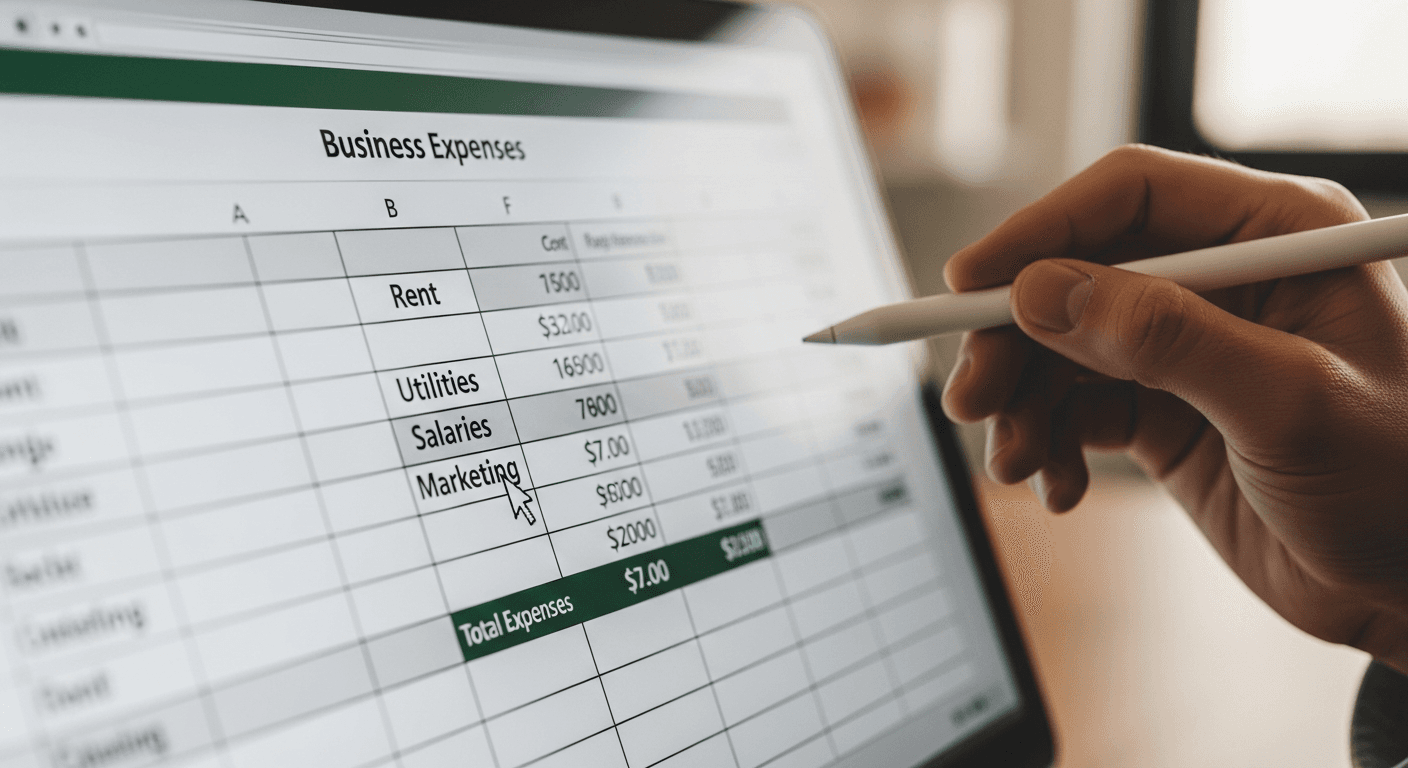
Start with these column headers in row 1:
- Date
- Vendor/Payee
- Description
- Category
- Amount
- Payment Method
- Receipt? (Y/N)
- Tax Deductible? (Y/N)
Skip fancy formatting initially. Focus on capturing data consistently. You can make it pretty later.
Add dropdown menus for Category and Payment Method columns. This prevents typos that mess up your totals. In Excel, use Data > Data Validation > List to create dropdowns.
Formulas That Actually Help
Your template needs three key calculations:
Monthly Totals by Category
Use SUMIFS to total expenses by month and category:
=SUMIFS(Amount_Column, Date_Column, ">=1/1/2026", Date_Column, "<=1/31/2026", Category_Column, "Office")
Tax-Deductible Summary
Calculate your potential deductions:
=SUMIF(Tax_Deductible_Column, "Y", Amount_Column)
Payment Method Breakdown
Track cash vs. Credit card spending:
=SUMIF(Payment_Method_Column, "Credit Card", Amount_Column)
Don't overcomplicate with complex pivot tables initially. Simple SUM and SUMIF functions handle most small business needs.
Staying IRS-Compliant with Excel
The IRS requires businesses to maintain accurate records including amount, date, business purpose, and vendor. Your Excel tracker works for audits if you follow their rules.
Keep receipts for at least three years to comply with IRS requirements. Generally, the IRS requires receipts for expenses over $75, but smart business owners keep everything.
Your Excel template must connect to actual documentation. Create a "Receipt" column noting where you store each receipt (file folder, cloud storage, etc.). An Excel tracker without receipt backup fails IRS scrutiny.
Document business purpose clearly in your Description column. "Lunch" doesn't cut it. Write "Client meeting lunch with ABC Company to discuss Q2 contract."
Common Excel Template Mistakes to Avoid
Mixing Personal and Business Expenses Create separate templates or at minimum, separate sheets within the same file. Mixing them creates tax complications and makes analysis worthless.
Inconsistent Category Names "Office Supplies," "office supplies," and "Office supply" become three different categories in Excel. Use data validation dropdowns to enforce consistency.
Forgetting Recurring Expenses Set calendar reminders for monthly subscriptions, insurance payments, and other recurring costs. These are easy to forget but add up quickly.
Not Backing Up Your File Store your expense template in cloud storage (Google Drive, Dropbox, etc.). Losing months of expense data because your computer crashed isn't recoverable.

Monthly Review Process That Prevents Disasters
Your template only works if you use it consistently. Set up a monthly review process:
Week 1 of Each Month
- Enter all expenses from the previous month
- Reconcile against bank and credit card statements
- File physical receipts in organized folders
Week 2 Review
- Check category totals for unusual spikes
- Verify tax-deductible classifications
- Update any missing business purpose descriptions
This process catches errors before they compound and identifies spending patterns that need attention.
When to Graduate Beyond Excel
Excel works great until it doesn't. Consider upgrading when:
- You're spending more than 4 hours monthly on expense tracking
- You have employees who need to submit expenses
- You need real-time expense approval workflows
- Integration with accounting software becomes essential
Many businesses successfully use Excel templates for years. Don't feel pressure to upgrade just because everyone else uses fancy apps.
Related Guides
Getting Started Today
Download a basic business expense template and start tracking immediately. Perfection paralyzes progress. Your rough tracking system beats no tracking system every time.
Set up your categories based on how you actually spend money, not theoretical business categories. You can always adjust later as patterns emerge.
The best expense tracking system is the one you'll actually use consistently. Excel templates work because they're familiar, flexible, and free.
Building comprehensive financial tracking gives you the foundation for serious business planning. Our financial projections tool helps you turn expense data into forward-looking budgets and cash flow forecasts. Ready to level up your financial planning? Try our business plan generator and see how proper expense tracking fits into your complete business strategy.